Getting started
Do one step at a time, and stop whenever you need to. Nothing breaks if you stop halfway; the next step waits for you.
- Ask someone to help if you can, especially for the watch steps. They can read the steps out while you tap.
- Steps 1 to 3 are the app on your phone.
- Steps 4 and 5 are only for a Garmin watch. They are on the Garmin watch page, and you can do them on another day.
You need: your phone, and the email address you gave when you were invited.
Step 1: Sign in
- On your phone, open your browser (such as Chrome) and go to app.chargewiseapp.net.
- Type your email address and tap Email me a sign-in link.
- Open your email. Look for Your Chargewise sign-in link. Check spam if it isn't there.
- Tap Sign in to Chargewise in the email, then Sign in to Chargewise again on the page that opens.
The link works once, for 15 minutes, on the phone you open it on. If it runs out, just ask for a new one.
If the link opens in a different browser, that's fine: use that browser for Chargewise from now on.
Put Chargewise on your Home Screen
Open your browser's menu (in Chrome, it's ⋮) and tap Add to Home screen (it may say Install app). From now on, open Chargewise from its icon.
On iPhone, use Safari's Share button, then Add to Home Screen.
You can stop here and carry on another time.
Step 2: Agree and set up
Before you start says what Chargewise is: a pacing aid, not a medical device. How you feel comes first, and you decide what to do.
- Read it, or ask your helper to read it to you.
- Tick the three boxes: the Terms and Privacy Notice, consent to your health data being used to run the app, and that you are 18 or older.
- Tap Continue.
Set up Chargewise
This comes next. Most of it is taken from your phone.
- Time zone and Formats: check they look right.
- Quiet hours: set them to when you sleep. Reminders don't sound then, except medicines you choose to keep at their time.
- Starter reminders: on to start. A gentle set: a 10-minute rest every 50 minutes while rest blocks are on, breathing, fluids, a wind-down at 21:00, and morning and evening check-ins. You can change them later in Settings → Reminders.
- Rest-block hours: rest blocks switch on by themselves 09:00–17:00 on weekdays. To change the hours later, go to Settings → Set-up.
- Tap Finish set-up.
You may then be asked: Sign in with your fingerprint next time? Tap Set up fingerprint sign-in to skip the email next time, or Not now.
You can stop here and carry on another time.
Step 3: Turn on reminders
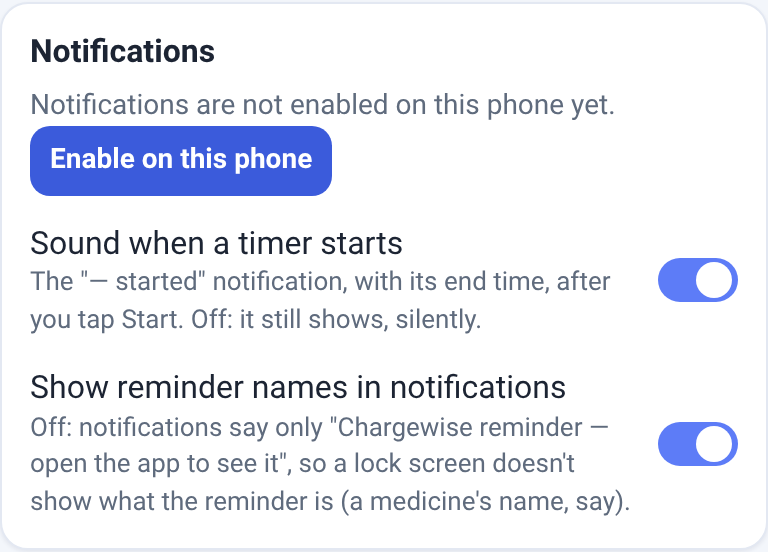
Reminders reach you as phone notifications. Until you turn them on, Today says "Notifications are not enabled on this phone yet."
- Tap Settings and scroll down to the Notifications card.
- Tap Enable on this phone, then Allow when the phone asks.
- Tap Send test. A test notification should arrive.
On Android, one more setting
So reminders aren't held back while the phone is idle:
- Open the phone's Settings, then Apps, then your browser (such as Chrome), not Chargewise.
- Tap Battery and choose Unrestricted.
The names can differ a little from phone to phone.
That's the app set up. If you have a Garmin watch, Steps 4 and 5 are on the Garmin watch page, for whenever you're ready.
Your first days
You only need Today. Everything else can wait.
- Reminders come as notifications. On Today, a reminder's card has Done and, for most, Skip or a snooze. You can also just leave it; some come back once.
- Rest now starts a rest. Log event records when you overdid it, symptoms, or a planned rest, in a few taps.
- Check-ins: a short one in the morning (how you woke and slept) and one in the evening (how the day was).
- The day's colour (Green, Amber or Red) is a suggestion from yesterday, your check-ins and, with a watch, last night. Tap Why? to see what set it. How you feel comes first; you can change it.
- With a watch: the first watch figures appear the morning after the first night. Questions about time above your limit come the next day. Comparisons with "your normal" (HRV, overnight heart rate and Body Battery) need 21 nights of watch data first.
- Weekly review: every Monday morning, in History → Weekly review. It reports your week; it doesn't give advice.
Questions? See the FAQ, or email support@chargewiseapp.net.